Using your own videos as live wallpaper for your Mac
Dynamic wallpapers have been a feature on Apple computers for some time, but macOS Sonoma has taken things to the next level with true video wallpapers. In this tutorial, I’ll show you how to customize your Mac experience by using your own videos as live wallpapers.
https://www.youtube.com/watch?v=J2s8mi6j3EE
Introduction
Apple’s macOS Sonoma introduced stunning aerial video wallpapers that create an immersive desktop experience. While the built-in options are beautiful, you might want to personalize your Mac with your own video content. This tutorial will guide you through the process of replacing Apple’s default live wallpapers with your own custom videos.
I for one like using videos from Pexels but go crazy.
What You’ll Need
- A Mac running macOS Sonoma 14 or later
- A video file (preferably 4K with 16:9 aspect ratio)
- Basic knowledge of navigating your Mac’s file system
- Patience (typing that admin password will get old)
Method 1: Replacing an Existing Apple Live Wallpaper
This method involves replacing one of Apple’s pre-existing live wallpapers with your own video. In my case, I’m replacing the Kelp Forest live wallpaper in the Underwater section. Kelp, yech.
Here’s how to do it:
Step 1: Prepare Your Video
First, make sure your video meets these requirements:
- 4K resolution (3840 × 2160) is recommended for best quality
- 16:9 aspect ratio works best
- MOV format (you can rename MP4 files to MOV, or use QuickTime to convert)
- Short duration that loops well (5–30 seconds is ideal)
- Remove audio if possible to reduce file size
Step 2: Download a Default Live Wallpaper
- Open System Settings from the Apple menu (or System Preferences on older versions).
- Click on “Wallpaper” in the sidebar.
- Browse the live wallpaper options (look for dynamic/aerial wallpapers).
- Select and download any of the live wallpapers (you’ll see a download progress ring).
- Once downloaded, this wallpaper will appear on your screen. You can switch back to your regular wallpaper for now.
Step 3: Locate the Wallpaper Files
- In Finder, navigate to this path: /Library/Application Support/com.apple.idleassetsd/Customer/4KSDR240FPS
- You can use Go > Go to Folder… in Finder and paste this path.
- If you have trouble finding it, check the Library folder at the root of your startup disk (not your user Library).
Step 4: Replace the Wallpaper
- In the folder, you’ll find the wallpaper file you just downloaded.
- Make note of the exact filename (including extension).
- Rename your custom video file to exactly match the wallpaper filename.
- Replace the original wallpaper file with your renamed video file (make a backup of the original first if you want to restore it later). Because you’re trying to access a restricted folder, you will need to enter your admin password.
Step 5: Apply Your Custom Wallpaper
- Return to System Settings > Wallpaper.
- Select the same wallpaper you downloaded earlier.
- Your custom video should now play as the wallpaper.
- If it doesn’t work immediately, try restarting your Mac or switching to a different wallpaper and back again.
EXTRA CREDIT #1: Replacing preview thumbnails
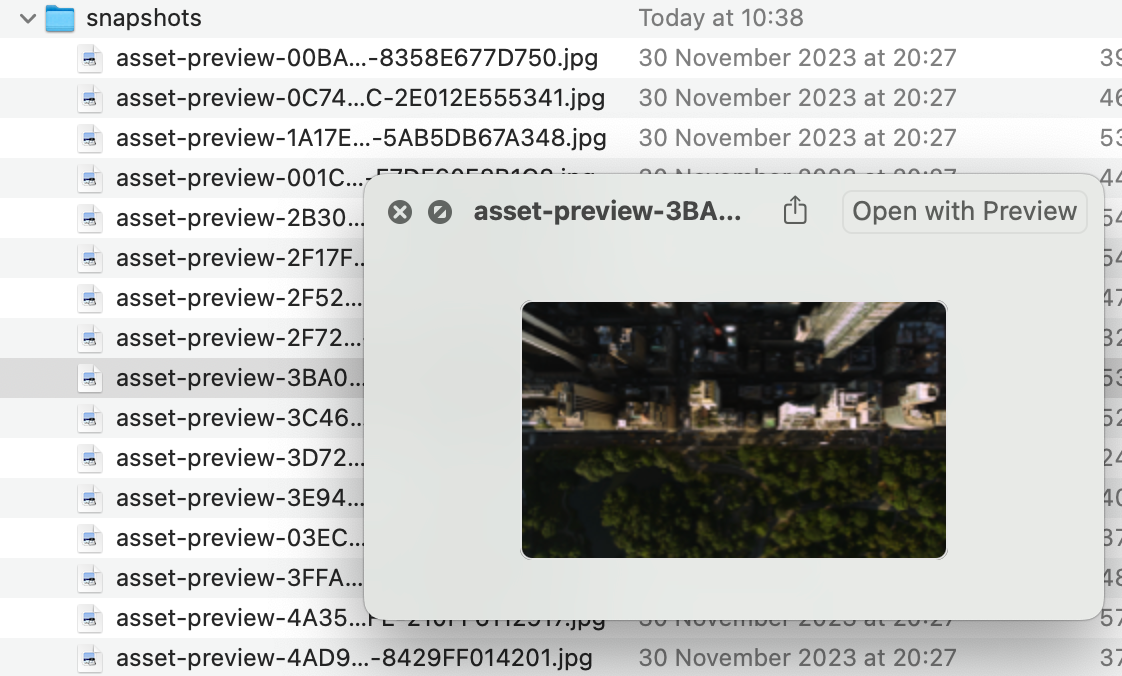
As you were fiddling in the /Library/Application Support/com.apple.idleassetsd/ folder you may have noticed a “snapshots” folder. It does exactly what you think it does. Locate the thumbnail file that matches your wallpaper and copy the name. Archive the JPG file and delete the original (password req’d).
Open your wallpaper and screenshot the first frame. Save the screenshot using the name from the Snapshots folder then move the new file there (password req’d). Close the Wallpaper widget and pen it again and voilà!
Finding the thumbnail
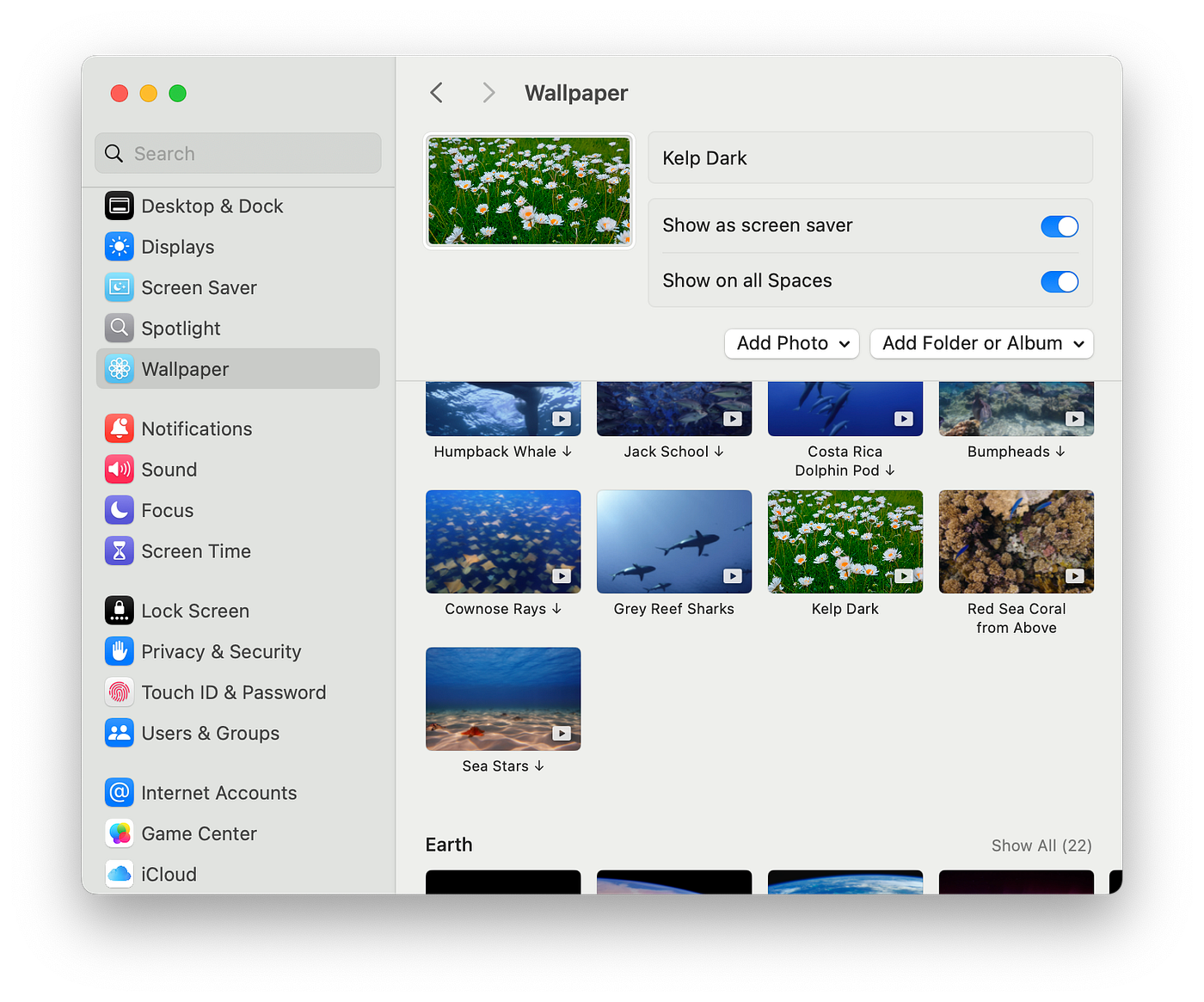 That kelp looks like daisies.
EXTRA CREDIT #2: Replacing labels
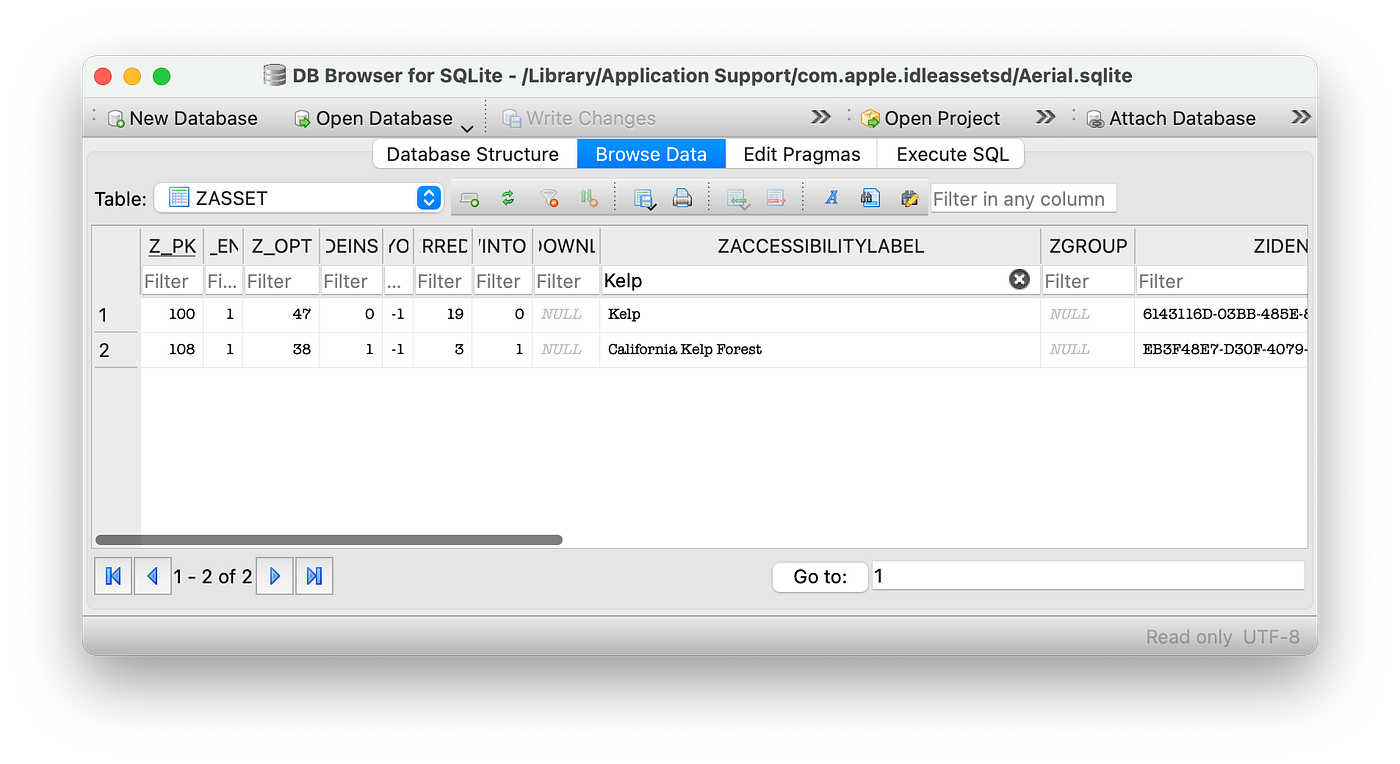
As you were fiddling in the /Library/Application Support/com.apple.idleassetsd/ folder, you may have noticed the presence of SQLite database files. Using a simple SQLite manager such as the SQLite Browser, you can search for the name of the wallpaper you just “hacked” and rename the label. Back the .sqlite files up first then modify at your own risk. For instance, look for items containing “kelp”.
Method 2: Using Third-Party Apps
If the manual replacement method seems too technical, you can use third-party apps that make the process easier.
DISCLAIMER: I have no relationship to these apps; they will include some kind of in-app payments and I do not receive any kind of commission for those.
Popular Apps for Live Wallpapers:
- 4K Live Wallpaper: Allows importing local videos and includes smart auto-pause features.
- iWallpaper: Supports multiple monitors and various display ratios.
- Live Wallpaper Engine HD: Offers customization options with widgets.
Using these apps is generally straightforward:
- Download and install the app from the Mac App Store.
- Open the app and look for an “Import” or “Add Custom” option.
- Select your video file.
- Apply it as your wallpaper using the app’s interface.
Troubleshooting Tips
Black Screen Issues:
- Give it time: Sometimes the system needs time to adjust to new settings. Try logging out and back in, or restarting your Mac.
- Check video format: Ensure your video is in a compatible format (MOV works best but MP4 works fine in most cases).
- File naming: Double-check that you’ve copied both the name and extension exactly, even if the format does not match.
- Video quality: Low-quality or unusually-sized videos might cause issues.
Animation Not Working:
- Log out/in or restart your Mac: A simple restart can resolve many issues.
- Change wallpapers: Try switching to a different wallpaper and then back to your custom one.
- Check macOS version: Confirm you’re running macOS Sonoma 14 or later.
Performance considerations:
- Live wallpapers can consume more system resources and battery life.
- Most third-party apps include auto-pause features that stop animation when you’re in full-screen mode or running on battery.
- Shorter video loops will use fewer resources.
In conclusion
Using your own videos as live wallpapers on your Mac is a great way to personalize your desktop experience. While Apple doesn’t officially provide a direct way to do this, the methods I mention in this post offer workable solutions.
Remember that live wallpapers can be inconsistent at times, so some patience may be required. With the right video and a bit of tinkering, you’ll have a uniquely personalized Mac desktop that stands out from the crowd.
Note: Future macOS updates may change how live wallpapers work, potentially affecting these methods.
Have you created a custom live wallpaper for your Mac? Share your experience and any tips you’ve discovered via the contact form below!