Setting up your new Mac for data work
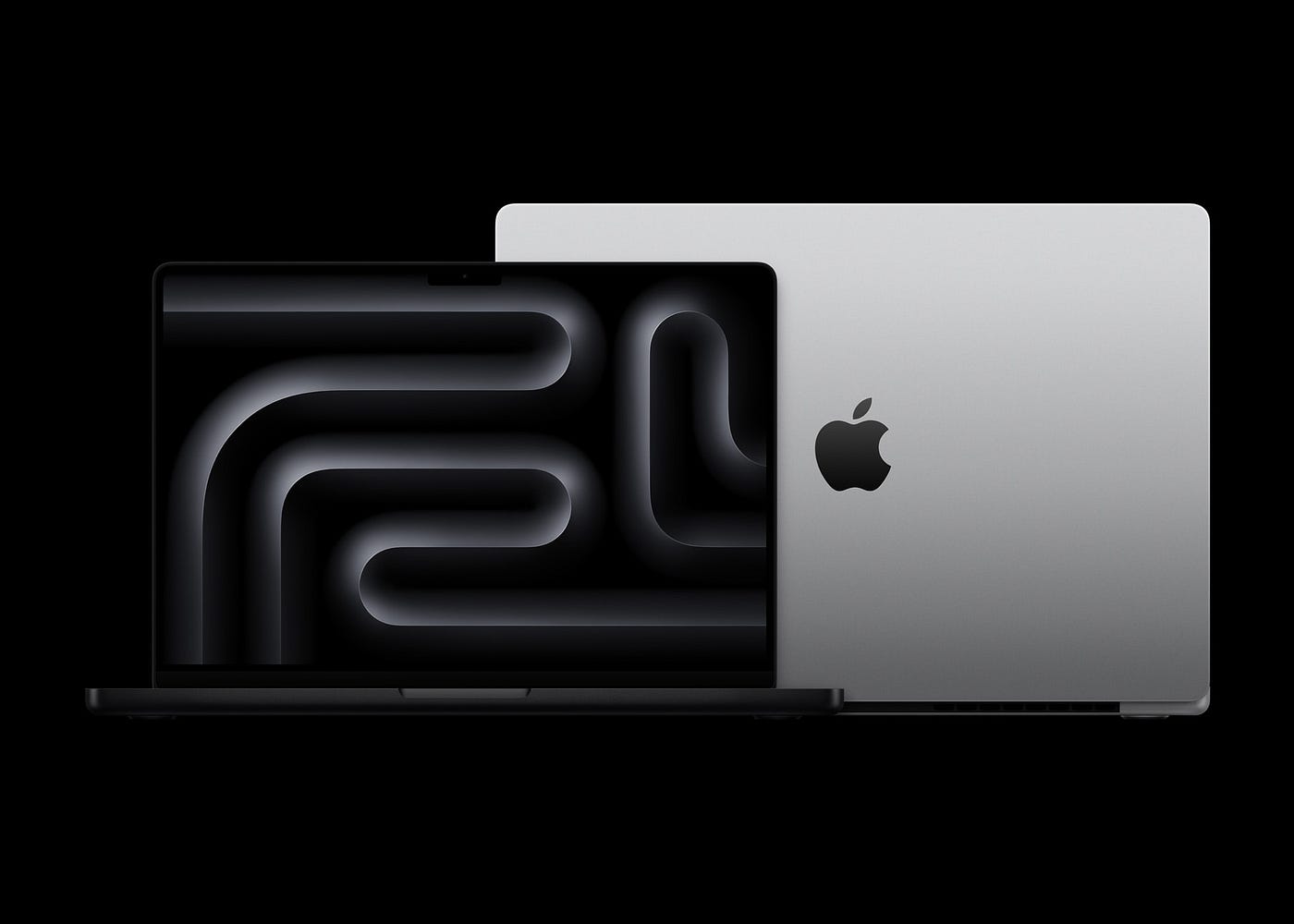
So you gave in and bought one of those new M4 Mac computers before the Trump tariffs hit? I know I did, and went with the 14-inch Macbook Pro with the M4 chip.
Once you bring your new computer home, it’s time to get it set up for work. In my case, I work in digital analytics and data engineering with some medium/light development and data science. Therefore, the bits of software in the list below fit my everyday needs but your mileage will vary.
Apple’s Macbook Pro laptop with the M4 chip
What’s in my toolbox?
A browser other than Safari
Despite the bad press, I like Chrome because it has all the bells and whistles I need, including a decent framework for extensions and debugging. All privacy considerations aside, I love being able to sync cookies and other settings across devices.
Safari just doesn’t cut it for me, Firefox is dying, Brave doesn’t feel right, Microsoft Edge is Diet Chromium so meh, and Arc feels shiny and new but also half-baked.
Homebrew
Homebrew is awesome for installing and maintaining Mac packages.
If you’ve used GNU/Linux before, this looks and behaves a lot like apt-get or dpkg. Make sure to run the following command often:
brew update && brew upgrade
Hyper Terminal
Hyper will replace your vanilla Mac OS Terminal app. you can install Hyper with Homebrew:
brew install –cask hyper
One installed, you will definitely want to install plugins, such as hyperpower (so pretty), and themes (try powerlevel10k ).
Like most terminals, it will shine with zsh and, even better, Oh My Zsh.
Oh My Zsh
Oh My Zsh replaces your basic bash shell with zsh — but on steroids.
This turns your terminal into a different beast, but don’t take it from me.
Python
As of November 2024, new Macs ship with Python v3.9.6 and you may want something newer. Try use Homebrew to install a fresher, newer version:
brew install python #this installs version 3.12
You may want to open your ZSH profile (~/.zprofile) and add the following line:
export PATH=“$(brew - prefix python)/libexec/bin:$PATH”
Save and close ~/.zprofile then restart your terminal. This will tell your system to use the Homebrew version of Python over the system default.
Test that out with the following terminal commands:
which python
> /opt/homebrew/opt/python@3.13/libexec/bin/python
python -V
> Python 3.13.0
MySQL
Installing MySQL is a breeze using Homebrew:
brew install mysql
To be fair, I only use MySQL for local projects that use some form of SQL. For everything external, I tend to favor Google BigQuery. For that we need the Google Cloud SDK.
Google Cloud SDK
The Google Cloud SDK will allow you to manage and manipulate Google Cloud resources from your Mac. To install it, you can either download it from the documentation page for the the Google Cloud SDK for Mac or just use Homebrew:
brew install –cask google-cloud-sdk
Visual Studio Code
For a long time I was staunchly anti Visual Studio because it was a clunky, flaming pile of garbage but I have to admit that since the late 2015 release and subsequent improvements, it has become a very useful tool for me. I also use TextMate as a companion text editor for the built-in text function.
To install it, just go to… just kidding, just use Homebrew:
brew install –cask visual-studio-code
Do take time to check out the Mac-specific config instructions. The one I can’t live without is command line integration: it allows you to launch VS Code from a given folder when in the terminal!
cd ~/projects/my_project
code .
# VS Code opens the whole folder!
cd ~/projects/my-git-clone/
code app.py
# VS Code opens the single Python file
To install this integration:
- Launch VS Code.
- Open the Command Palette (Cmd+Shift+P) and type ‘shell command’ to find the Shell Command: Install ‘code’ command in PATH command.
 Select Shell Command from the Command Palette to add CLI support.
I just love VS Code because of all the extensions and GitHub Copilot — although I need to oversee Copilot’s suggestions more often than not.
Among my favorite VSC extensions are:
- GitHub Copilot: your code AI assistant inside VSC. Requires a subscription.
- MarkDown Preview Advanced : offers a preview pane for .md (MarkDown) files
- Rainbow CSV: separates CSV fields as colored chunks, helping you handle separation. Does not work if your dad left you as a kid.
- Incredibly In Your Face: uses the Mister Incredible Meme to show you how bad your code is
Docker
If you work with cloud-based projects, Docker is a must have and -you guessed it- you can use Homebrew to install it:
brew cask install docker
ClipMenu (now Maccy)
ClipMenu (I still call it that) is a clipboard manager that stores your clipboard history and allows you to recall older entries with keyboard shortcuts.
The original project has not been maintained and a Silicon version for Apple M chips is available via the Maccy port. I could not work without it, it’s that good.
Honorable mention: thefuck
thefuck is a wonderful command-line helper that attempts to correct your commands in case of errors or mispellings.
Available through Homebrew using the usual:
brew install thefuck
In conclusion
There you have it, my list of favorite things to install on a fresh Mac.
What about you? What are programs you can’t live without? Let me know via the contact form!